
💾 Firmware Update Guide
TP-Link RE220 Firmware Update Guide
Keep your TP-Link RE220 secure and fast by updating to the latest firmware version. Follow these simple steps.
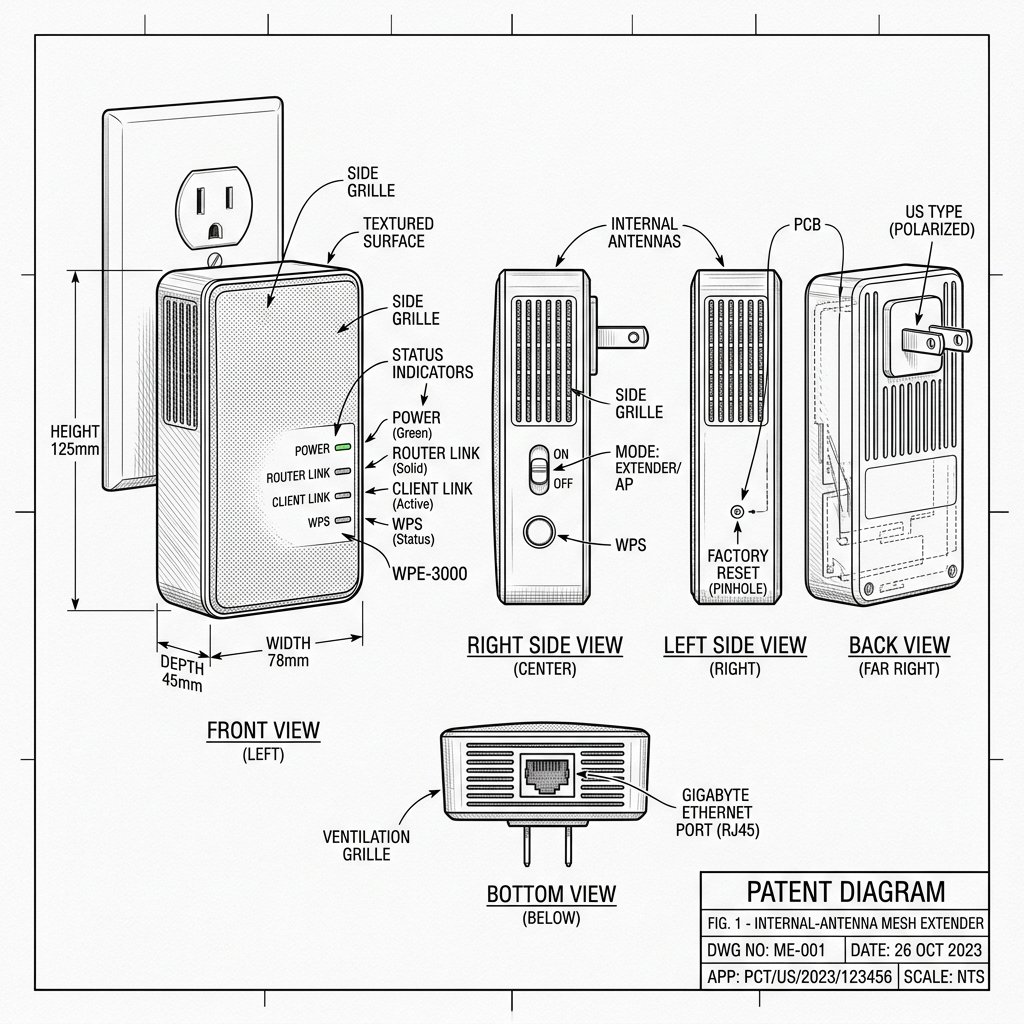 Internal-Antenna Mesh Extender
Hardware Safety & Status
TP-Link RE220 Firmware Guide
Monitor your device's Power and System LEDs during the upgrade process. Keep the device plugged in and connected via Ethernet or stable WiFi until the reboot cycle finishes.
Solid Power LED Stable Network Do Not Unplug
- Log into the extender's web admin panel.
- Navigate to the Settings or System Tools menu.
- Select 'Firmware Update' or 'Software Upgrade'.
- Click 'Check for Updates' or manually upload the latest firmware file downloaded from the official support site.
- Do not power off the device while the firmware is installing.