How to Update AirTies 4971 Firmware
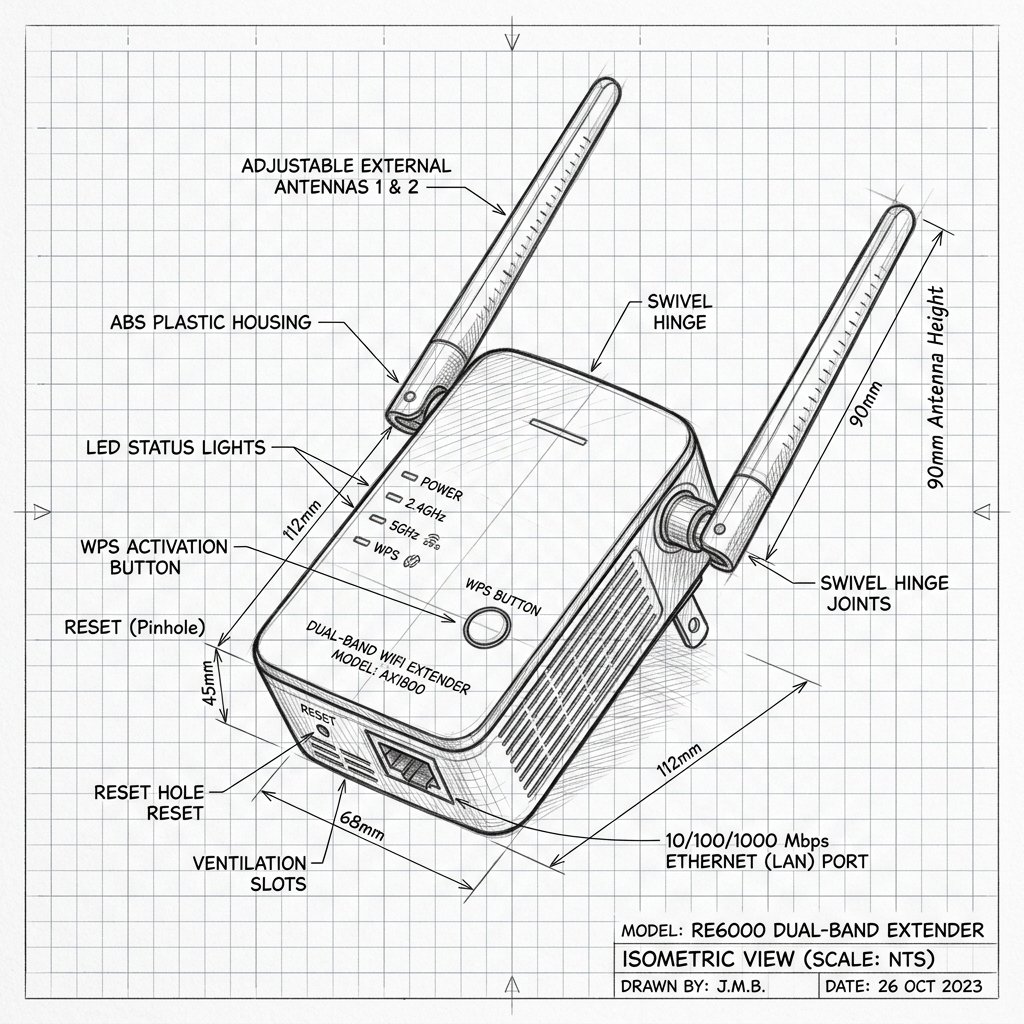 Dual-Antenna Range Extender
AirTies AirTies 4971 Firmware Guide
Monitor your device's Power and System LEDs during the upgrade process. Keep the device plugged in and connected via Ethernet or stable WiFi until the reboot cycle finishes.
Unlike standard generic WiFi extenders, the AirTies 4971 is part of AT&T’s managed “Smart Wi‑Fi Extender” ecosystem. Firmware updates are pushed automatically by your AT&T gateway and backend systems. You do not need to download files or log into a web interface to trigger an update.
Reality Check: No Manual Downloads. There is no public AT&T or AirTies download page where you can get a firmware file (like a .chk or .img) for the 4971. Generic AirTies instructions found online about logging into air4920.local or using an "Advanced Settings" tab do not apply to this tightly integrated, AT&T-managed device.
Step 1: Ensure a Stable Connection
- Make sure the AirTies 4971 is powered on and within the recommended range (about 40 feet, two walls, or one floor away from the gateway).
- A stable wireless backhaul is required for the gateway to successfully push the update to the extender.
Step 2: Verify Status in Smart Home Manager
- Open the AT&T Smart Home Manager app.
- Check the extender’s device card. A green check mark indicates the extender is online, part of the mesh network, and eligible to receive background updates.
- If the app shows the extender as offline or missing, you must resolve the pairing issue (via WPS or Ethernet) before it can receive firmware updates.
Step 3: Monitor the LED During Updates
- When AT&T pushes a firmware update, the front LED will change from solid white to a specific “software updating” state (usually flashing).
- Wait patiently. The update process can take several minutes.
- The update is complete when the front LED returns to a solid white state.
Warning: Do not unplug, move, or restart the AirTies 4971 while the LED indicates a software update is in progress. Interrupting the power during an update can corrupt the firmware and permanently break the device.
Step 4: Proactive Maintenance (Force a Check)
- While you cannot manually click "Update," you can encourage the system to check for new software by power-cycling your network during low-usage times.
- Unplug your AT&T gateway for 15 seconds, then plug it back in and wait for it to come fully online.
- Next, unplug the AirTies 4971 for 15 seconds, then plug it back in. This reboot sequence often clears network errors and allows pending background updates to initiate.