How to Update NETGEAR EX6250 Firmware
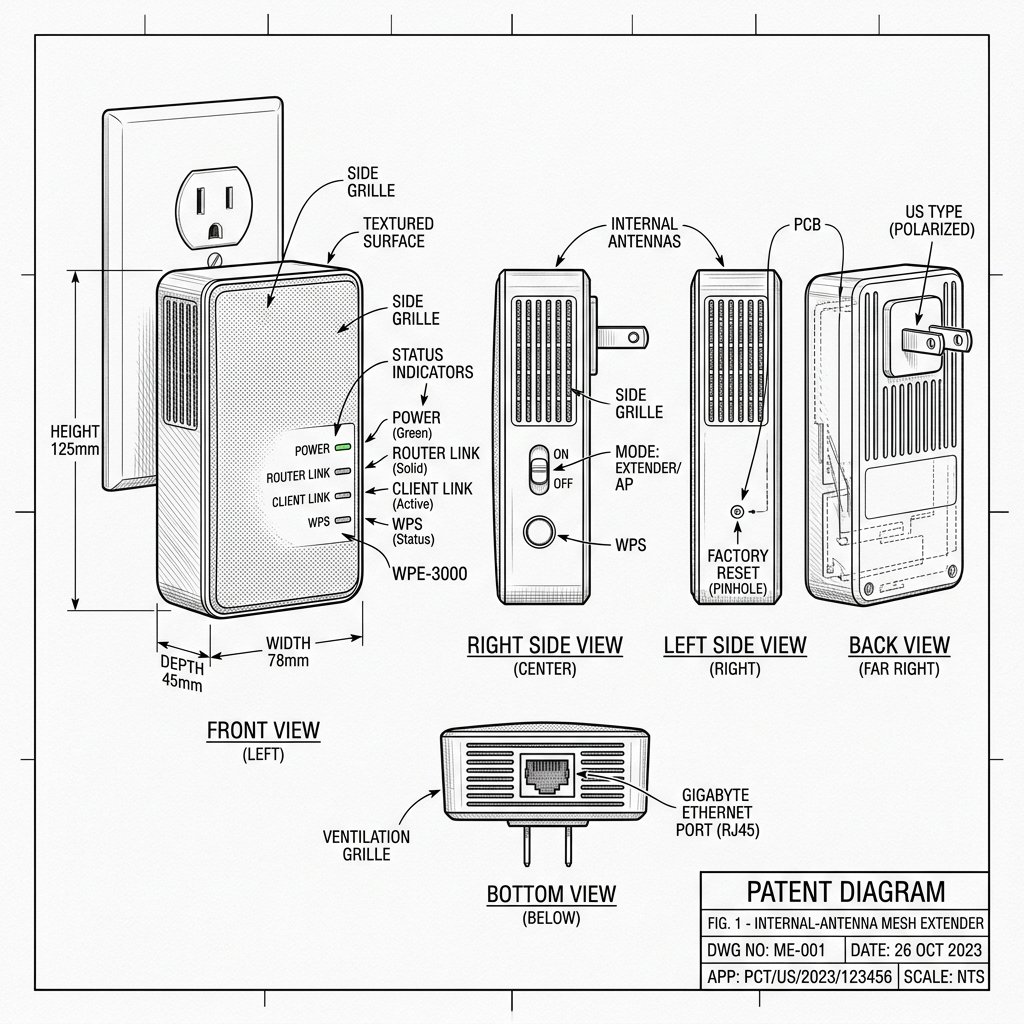 Internal-Antenna Mesh Extender
Hardware Safety & Status
Netgear EX6250 Firmware Guide
Monitor your device's Power and System LEDs during the upgrade process. Keep the device plugged in and connected via Ethernet or stable WiFi until the reboot cycle finishes.
Solid Power LED
Stable Network
Do Not Unplug
Keeping the EX6250 updated improves security and can fix disconnection or compatibility issues.
Step 1: Download the Correct EX6250 Firmware File
- On a computer, go to the official NETGEAR Support / Download Center.
- Search for EX6250 and open the Downloads section.
- Download the latest firmware ZIP file for EX6250 and save it to a convenient location.
- Unzip the file and locate the firmware file ending in
.chkor.img.
Step 2: Connect Directly to the EX6250
- Make sure the EX6250 is powered on with a solid Power LED.
- Connect a computer to the EX6250 via WiFi or Ethernet.
- Disable VPNs or proxies that can block access to the management page.
Step 3: Log In to the EX6250 Dashboard
- Open a browser and go to http://mywifiext.net or 192.168.1.250.
- Log in with the extender admin username (usually admin) and the password you set during setup.
Step 4: Upload the Firmware File
- Navigate to Settings > Firmware Update or Maintenance > Firmware Upgrade.
- Click Browse / Choose File and select the unzipped firmware file.
- Click Upload to start the update.
Important: Do not unplug the extender, turn off your router, or close the browser while the firmware is uploading and installing.
Step 5: Wait for Reboot and Confirm Version
- Wait for the EX6250 to reboot; the Power LED will turn solid again once it’s ready.
- Log back into the dashboard and verify the firmware version on the Status or Update page.
Step 6: Re-test WiFi
- Test WiFi in multiple rooms to ensure speeds and stability are normal or improved.
- If new issues appear, perform a soft reset and verify placement and router settings.