NETGEAR Nighthawk EX7700 – AC2200 Tri-Band WiFi Mesh Extender
 Desktop High-Power Tower
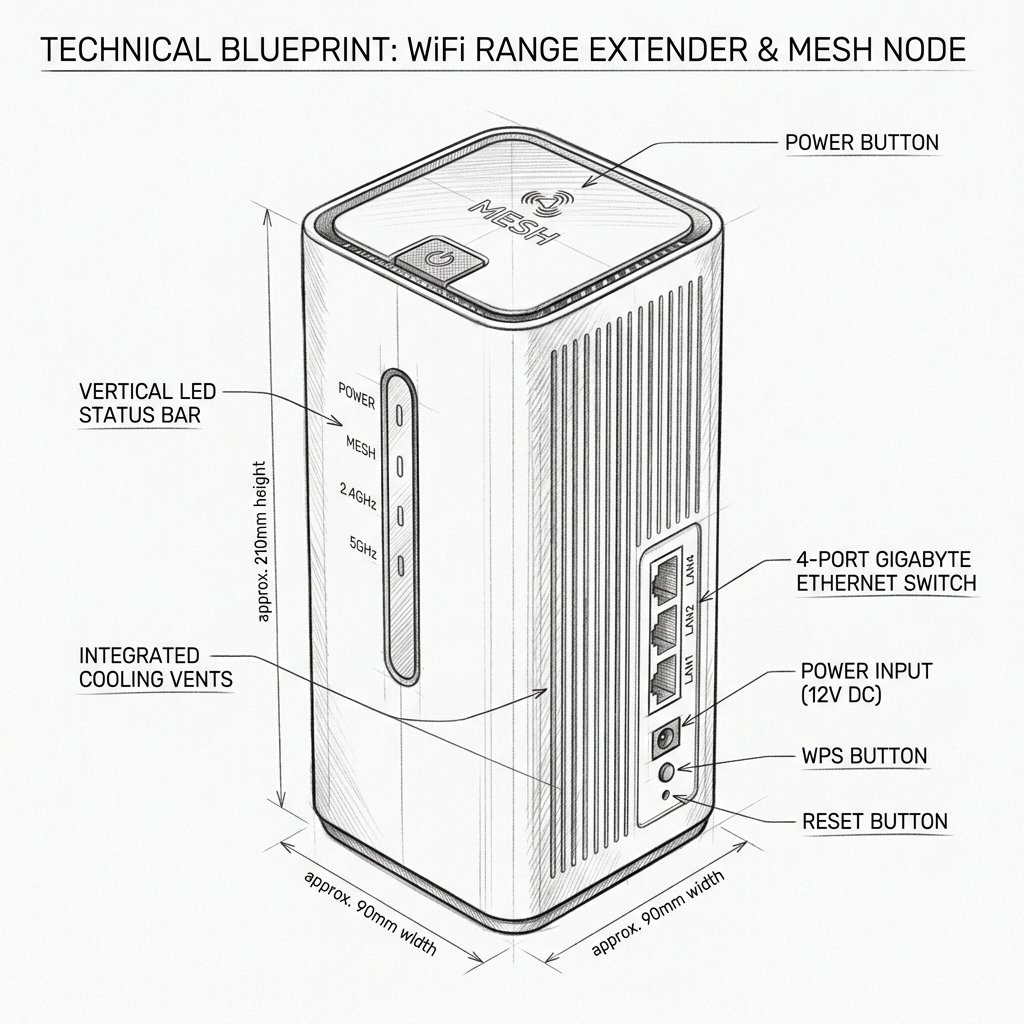
Netgear EX7700 Diagram
Reference this technical blueprint during setup to locate the power input, status LED indicators, one-touch WPS pairing button, and Ethernet port on your device.
The NETGEAR Nighthawk EX7700 AC2200 Tri-Band WiFi Mesh Extender is built to extend coverage, reduce dead zones, and provide smoother streaming and gaming with a dedicated tri-band backhaul. Use this guide to set up, reset, and troubleshoot your EX7700 quickly in a real-world home environment.
Quick 3-Step Checklist
- Restart: Unplug the extender, wait 15 seconds, and plug it back in.
- Reconnect: Make sure your phone or laptop is connected to the extender’s WiFi before opening the setup page.
- Verify router internet: Connect directly to your router WiFi and confirm the internet is working there first.
EX7700 AC2200 Tri-Band Extender Overview
- WiFi standard: WiFi 5 (802.11ac), AC2200 tri-band (2.4 GHz + two 5 GHz bands).
- Form factor: Desktop mesh extender with two Gigabit Ethernet ports.
- Best for: Medium to large homes, 4K streaming, online gaming, and multi-device households.
- Typical use: One seamless WiFi name across your home (One WiFi Name / Smart Roaming), with optional separate extended SSID if preferred.
How to Set Up Nighthawk EX7700 via Nighthawk App
This is the most user-friendly setup method for most people.
Step 1: Plug In and Power On
- Place the EX7700 in the same room as your router for initial setup.
- Plug it into a power outlet and wait until the Power LED turns solid.
Step 2: Connect Your Phone to the Extender
- On your phone, open WiFi settings.
- Connect to the default extender network (often named something like NETGEAR_EXT, shown on the label).
- If you don’t see it immediately, wait 30–60 seconds and refresh the WiFi list.
Step 3: Install and Open the Nighthawk App
- Install the NETGEAR Nighthawk App from the App Store or Google Play.
- Open the app and sign in with your NETGEAR account or create a new one.
Reality Check: If the app keeps “searching for your extender” for more than a minute or two, force close the app, toggle Bluetooth off and back on, then reopen it. If it still fails to detect the EX7700, switch to the browser setup method below.
Step 4: Start Guided Setup
- In the app, tap Set Up a New Device and select Mesh Extender or Range Extender.
- Choose EX7700 if prompted and follow the on-screen instructions.
Step 5: Connect the EX7700 to Your Router
- The app scans for nearby WiFi networks.
- Select your router’s SSID (WiFi name).
- Enter your router’s WiFi password exactly (case-sensitive).
Step 6: Choose WiFi Name and Mesh Behavior
- Recommended: Use One WiFi Name so the EX7700 and router share the same SSID and password for seamless roaming.
- Optional: Create a separate extended SSID (for example, HomeWiFi_EXT) if you want a clearly distinct network for testing or specific devices.
Step 7: Move the Extender to the Ideal Spot
- Think of the EX7700 as a relay runner: it must be close enough to the router to catch a strong signal before passing it on.
- Move it to a location roughly halfway between the router and the dead zone.
- Use the Router Link LED or the Nighthawk App signal indicator to confirm a good link (green is best, amber means move closer).
Step 8: Test WiFi Coverage
- Go to the previously weak area and connect to your WiFi.
- Run a speed test, stream a video, or join a video call to confirm stability and speed.
How to Set Up Nighthawk EX7700 via Browser (mywifiext)
Use this method if you prefer a browser or if the Nighthawk app cannot detect the extender.
Step 1: Plug In and Connect
- Place the EX7700 near your router and plug it into a power outlet.
- Wait for the Power LED to go solid.
- Connect a laptop, phone, or tablet to the extender’s default WiFi network (for example, NETGEAR_EXT).
Step 2: Open the Setup Page
- Open a web browser and type http://mywifiext.net in the address bar.
- If that does not load, try http://mywifiext.local or the fallback IP 192.168.1.250.
Reality Check: If the setup page will not open, make sure you are connected to the EX7700’s WiFi, not the router’s WiFi.
Step 3: Run the Setup Wizard
- When the page loads, select New Extender Setup.
- Sign in with or create your NETGEAR account if prompted.
- Allow the wizard to scan for available WiFi networks.
Step 4: Link the EX7700 to Your Router
- Select your router’s SSID for 2.4 GHz and 5 GHz bands.
- Enter your router’s WiFi password correctly for each band.
Step 5: Configure the Extended Network
- Choose whether to:
- Mirror your router SSID (One WiFi Name for seamless mesh roaming), or
- Use a different extended SSID (for example, HomeWiFi_EXT).
- Save your settings and wait while the EX7700 reboots.
Step 6: Move to Final Location
- Unplug the extender and move it to a wall outlet roughly halfway between the router and the dead zone.
- Plug it in, wait for LEDs to stabilize, and test WiFi performance in the problem area.
How to Set Up Nighthawk EX7700 via WPS
If your router supports WPS, this button-based method is a quick way to link the extender.
Step 1: Power On the Extender
- Plug the EX7700 into a wall outlet near your router.
- Wait until the Power LED is solid.
Step 2: Press WPS on the Extender
- Press the physical WPS button on the EX7700.
- The WPS LED will begin blinking.
Step 3: Press WPS on the Router
- Within two minutes, press the WPS button on your router.
- Wait for the EX7700 and router to complete pairing.
Step 4: Check Signal and Adjust Placement
- Check the Router Link LED on the EX7700:
- Green: Good connection.
- Amber/Red: Weak signal; move the extender closer to the router.
Tri-Band FastLane3 and Network Name Options
- Dedicated backhaul band: The EX7700 uses one of its 5 GHz bands as a dedicated backhaul to the router, leaving the other bands free for your devices.
- Single SSID (recommended): The router and EX7700 share one WiFi name so your devices can roam automatically between them.
- Separate SSID: Use a distinct extended network name if you want manual control or to connect only certain devices to the extender.