How to Update NETGEAR EX7700 Firmware
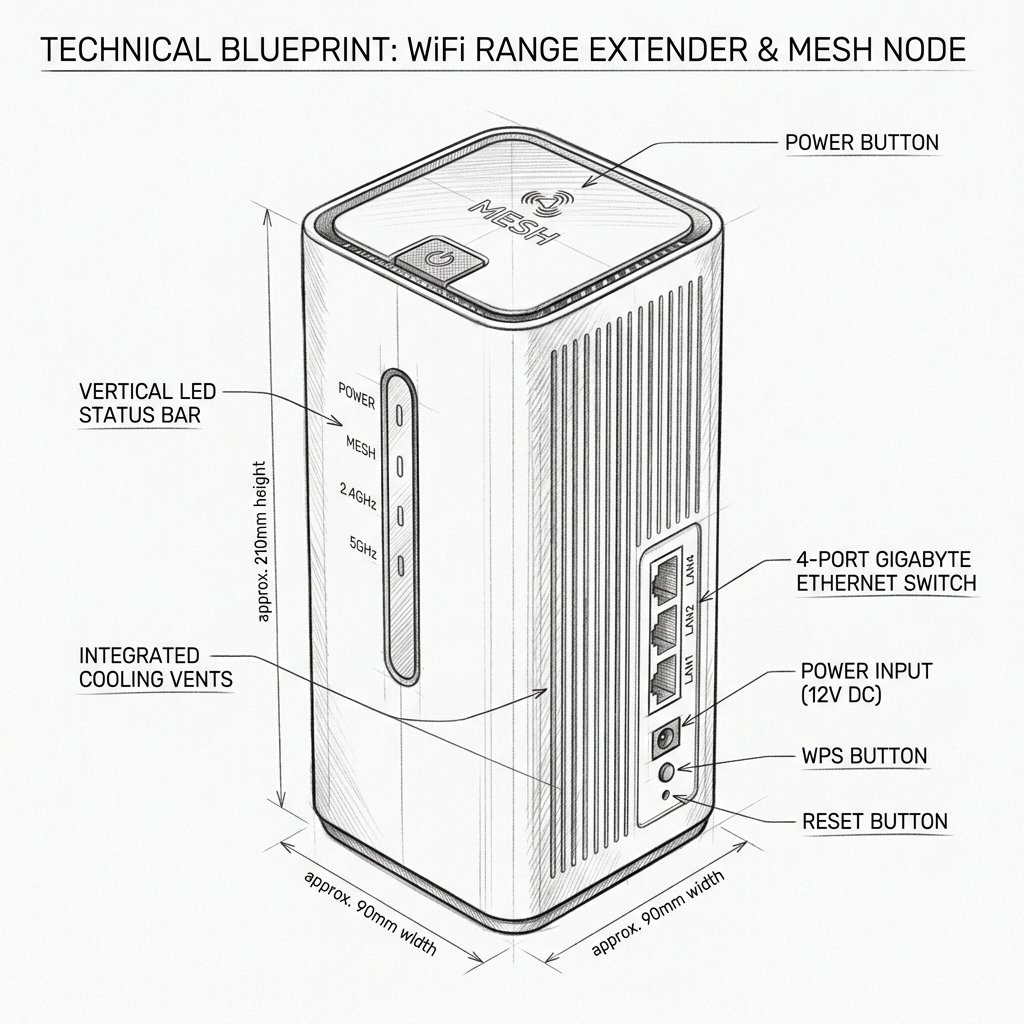 Desktop High-Power Tower
Hardware Safety & Status
Netgear EX7700 Firmware Guide
Monitor your device's Power and System LEDs during the upgrade process. Keep the device plugged in and connected via Ethernet or stable WiFi until the reboot cycle finishes.
Solid Power LED
Stable Network
Do Not Unplug
Update via Nighthawk App
- Open the Nighthawk App and select your NETGEAR EX7700.
- Go to the Firmware Update or similar section.
- Check for updates and follow the prompts to install any available firmware.
Update via Browser
- Connect a device to the NETGEAR EX7700’s WiFi.
- Open a browser and go to http://mywifiext.net or 192.168.1.250.
- Log in and navigate to the Administration or Firmware Update section.
- Check for firmware updates and apply them if available.
Important: Do not unplug or restart the extender while a firmware update is in progress. Wait until the EX7700 finishes rebooting and LEDs stabilize.