
 Desktop High-Power Tower
Ubiquiti AmpliFi AmpliFi HD MeshPoint (AFi-P-HD) Reset Location
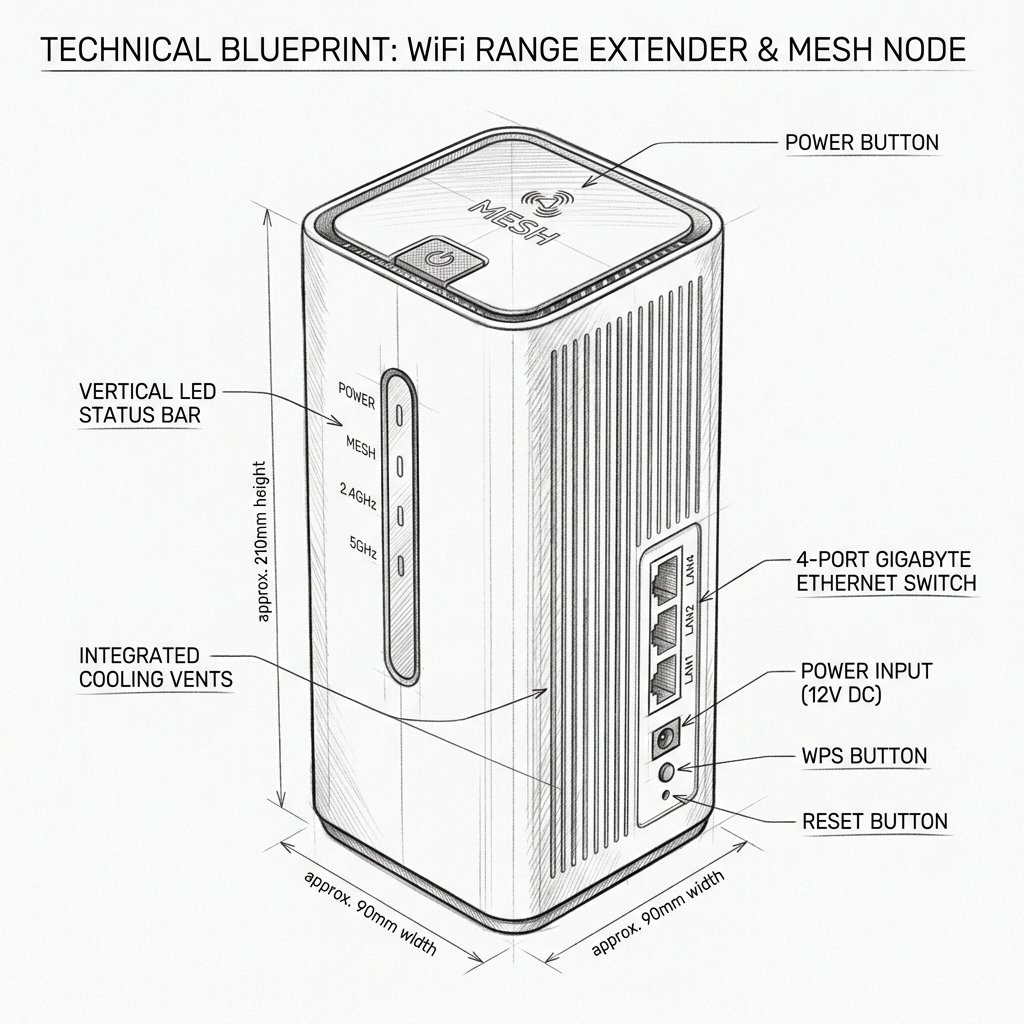
Locate the dedicated physical Reset pinhole or recessed button shown in the diagram. Use a paperclip or SIM eject tool to press and hold according to the steps below.
Factory Reset vs. Soft Reset
Use a soft reset when the MeshPoint is slow, temporarily offline, or not responding. Unplugging and reconnecting it keeps your saved network configuration.
Use a factory reset when the MeshPoint belonged to another network, cannot be adopted, or must be configured from the beginning. A factory reset erases its saved pairing and requires setup again through the AmpliFi app.
Warning: Before Resetting the MeshPoint
Warning: Resetting the AFi-P-HD will remove its current network pairing and erase saved configuration. Always try a simple power cycle first by unplugging the MeshPoint, waiting 10–15 seconds, and plugging it back in. If you perform a factory reset, make sure the main AmpliFi router is online and that you can access the AmpliFi app before starting the setup again.
Reset AmpliFi HD MeshPoint
Soft Reset
- Unplug the MeshPoint from the wall outlet.
- Wait 10–15 seconds.
- Plug it back in.
- Wait several minutes for the MeshPoint to reconnect to the AmpliFi network.
- Check its status and LED signal strength in the app.
Factory Reset
- Keep the MeshPoint plugged in and powered on.
- Locate the recessed reset button on the MeshPoint.
- Use a paperclip or similar tool to press and hold the reset button for about 10 seconds.
- Release the button when the LEDs begin flashing or change pattern.
- Wait several minutes for the MeshPoint to reboot and clear its previous configuration.
- Open the AmpliFi app and select the option to add a new MeshPoint.
- Follow the setup instructions again.