 Desktop High-Power Tower
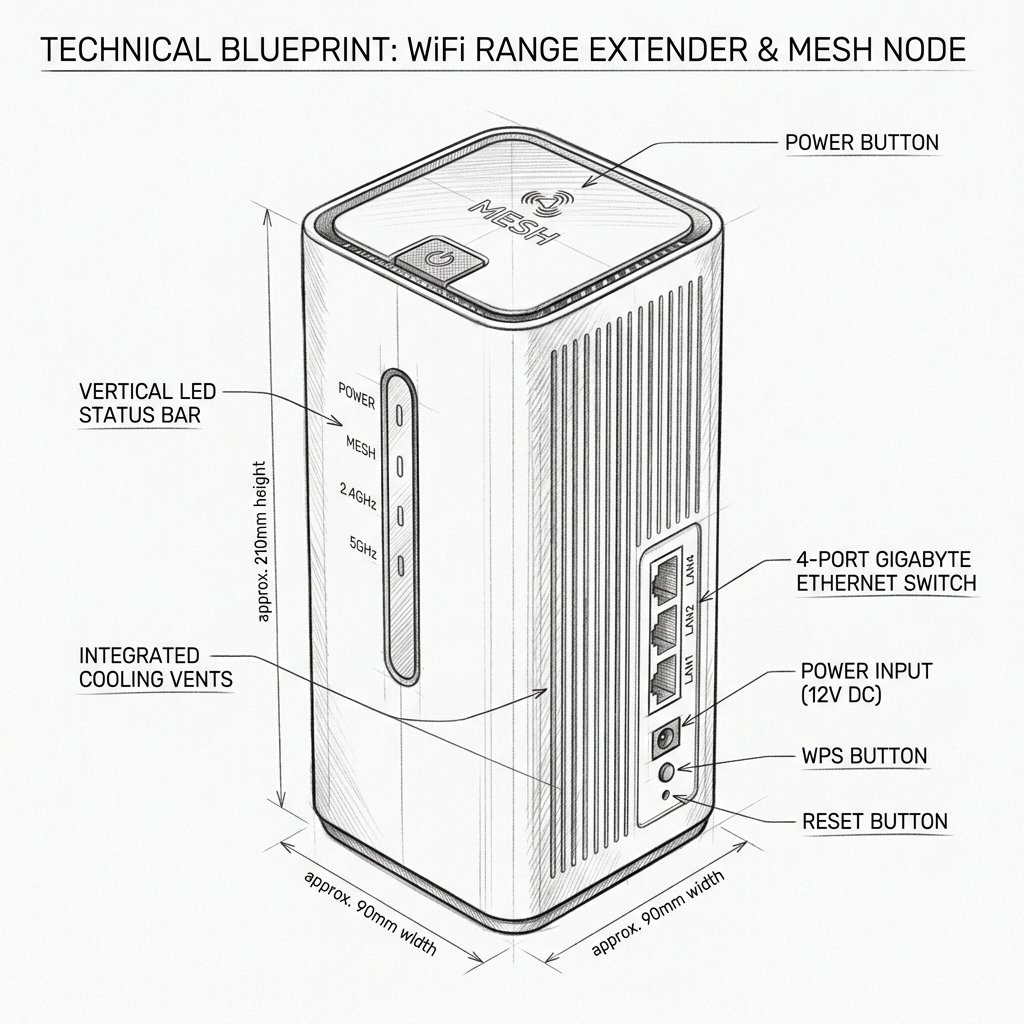
Ubiquiti AmpliFi AmpliFi HD MeshPoint (AFi-P-HD) Diagram
Reference this technical blueprint during setup to locate the power input, status LED indicators, one-touch WPS pairing button, and Ethernet port on your device.
The Ubiquiti AmpliFi HD MeshPoint (AFi-P-HD) is a plug-in mesh access point that expands coverage from an AmpliFi HD router. It is configured through the AmpliFi app and uses the same WiFi name and password as the main AmpliFi network for easier roaming.
Quick 3-Step Checklist
- Check compatibility: Make sure you have an AmpliFi HD router or a compatible AmpliFi network available.
- Reset if previously used: If the MeshPoint belonged to another network, factory-reset it before starting setup.
- Install the app: Download the AmpliFi WiFi app and keep your phone close to the MeshPoint during setup.
AFi-P-HD LED Status Guide
| LED behavior | Meaning | What to do |
|---|---|---|
| Middle LEDs flashing | The MeshPoint is waiting for configuration or pairing. | Open the AmpliFi app and add the MeshPoint. |
| All LEDs lit | The MeshPoint is receiving a strong signal. | The current location is suitable. |
| Fewer LEDs lit | The connection to the main router is weaker. | Move the MeshPoint closer to the AmpliFi router. |
| No LEDs | The MeshPoint may be powered off, inactive, or set to dim the LEDs. | Check the outlet and open the AmpliFi app to confirm its status. |
| Rapid flashing during reset | A reset or recovery process is in progress. | Do not unplug the MeshPoint until the process finishes. |
Set Up AmpliFi HD MeshPoint with the App
Step 1: Download the AmpliFi App
- Download the AmpliFi WiFi app on your Android phone or iPhone.
- Enable Bluetooth and WiFi on your phone.
- Sign in to your AmpliFi account if prompted.
- Keep your phone near the MeshPoint during discovery and configuration.
Step 2: Plug In the MeshPoint
- Plug the AFi-P-HD directly into a wall outlet near the main AmpliFi router for initial setup.
- Avoid using a power strip during pairing if possible.
- Wait for the MeshPoint LEDs to begin flashing, indicating that it is ready to be configured.
Step 3: Add the MeshPoint in the App
- Open the AmpliFi app.
- Tap the plus sign or the option to add a device.
- Select Set Up AmpliFi MeshPoint.
- Choose the AFi-P-HD when it appears in the device list.
- Follow the on-screen instructions to connect it to your AmpliFi network.
Step 4: Complete Pairing
- Wait while the app connects the MeshPoint to the main AmpliFi router.
- Keep the phone and MeshPoint close to the router during this process.
- Do not unplug the MeshPoint while the app is completing setup.
- When pairing is successful, the app will show the MeshPoint as online.
Step 5: Name the MeshPoint
- Assign a location name such as Bedroom, Office, or Basement.
- Clear names make it easier to check signal strength and troubleshoot the device later.
Move the MeshPoint to Its Final Location
- After pairing, unplug the MeshPoint and move it toward the area with weak WiFi.
- Place it between the main AmpliFi router and the dead zone.
- Do not place it in an area where the router’s signal is already unusable.
- Check the signal LEDs after plugging it back in.
- If only one or two LEDs are lit, move the MeshPoint closer to the main router.
- If most or all LEDs are lit, the location is generally suitable for extending coverage.
Login Instructions for AmpliFi HD MeshPoint
The AFi-P-HD is normally managed through the AmpliFi app rather than a separate extender login page. The MeshPoint does not usually have an independent web address like traditional WiFi extenders.
Login Through the AmpliFi App
- Open the AmpliFi WiFi app.
- Sign in using your AmpliFi account credentials, if remote management is enabled.
- Select your AmpliFi network from the dashboard.
- Tap the MeshPoint icon or its location name.
- Review signal strength, connected status, firmware information, and available settings.
Local Web Login
- Connect a computer to the AmpliFi WiFi network.
- Find the MeshPoint’s IP address in the main AmpliFi router’s connected-device list.
- Enter that IP address into the browser’s address bar.
- Use the same administrator credentials associated with your AmpliFi network if a login page appears.
- If the IP address is unknown, use the AmpliFi app or router’s client list to identify it.
Important: The main AmpliFi router’s local IP address is generally shown on the router’s touchscreen. The MeshPoint’s address is assigned by the main router and may change after a restart.