How to Factory Reset Netgear EXS27
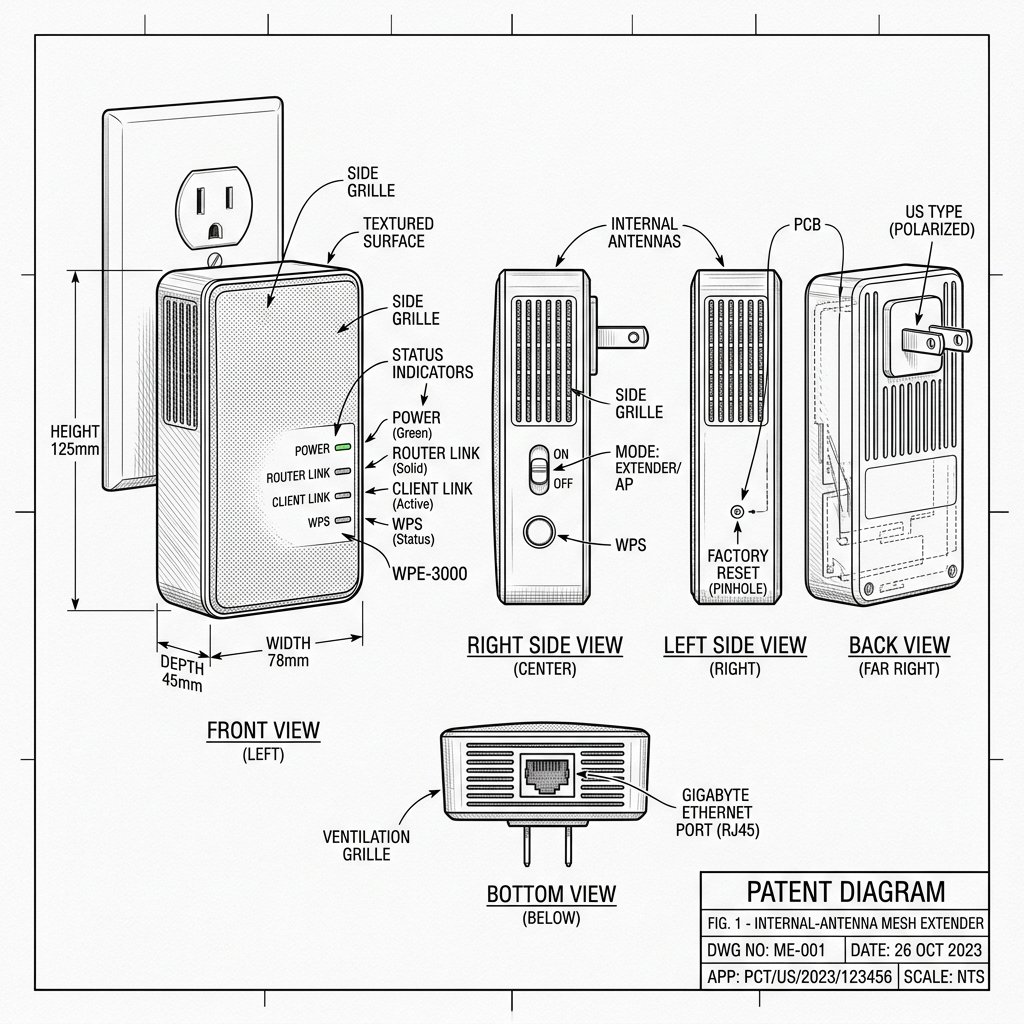 Internal-Antenna Mesh Extender
Netgear EXS27 Reset Location
Locate the dedicated physical Reset pinhole or recessed button shown in the diagram. Use a paperclip or SIM eject tool to press and hold according to the steps below.
Use these instructions when you change routers, forget passwords, or encounter persistent performance issues.
Soft Reset (Simple Restart)
Use this first for minor glitches; it restarts the device without erasing your settings.
- Unplug the EXS27 from the power outlet.
- Wait 10–15 seconds.
- Plug it back in and wait for the Power LED to become solid again.
Factory Reset (Full Restore)
This wipes all custom settings and returns the extender to its original out-of-box state.
- Make sure the extender is powered on.
- Locate the Reset pin-hole on the EXS27 housing.
- Use a paperclip or pin to press and hold the internal Reset button for about 8–10 seconds.
- Release the button when all LEDs blink, indicating the reset process has started.
- Wait a few minutes for the extender to fully reboot.
- Run the initial setup again using the Nighthawk app, browser, or WPS.
Warning: Resetting your NETGEAR extender can erase saved settings such as WiFi names, passwords, and custom options. Always try a simple power cycle (unplug, wait 10–15 seconds, plug back in) before performing a factory reset. If you do factory reset, make sure you know your router’s WiFi name and password, because you’ll need to set up the extender again from scratch.